Documentation
Complete feature guide for BMS — Dashboard, Billing, Expenses, Vehicle Management, Stock Management, Reports, and Admin.
On this page
Dashboard
Real-time snapshot of the selected day — your daily command centre for sales, collections, routes, and activity.
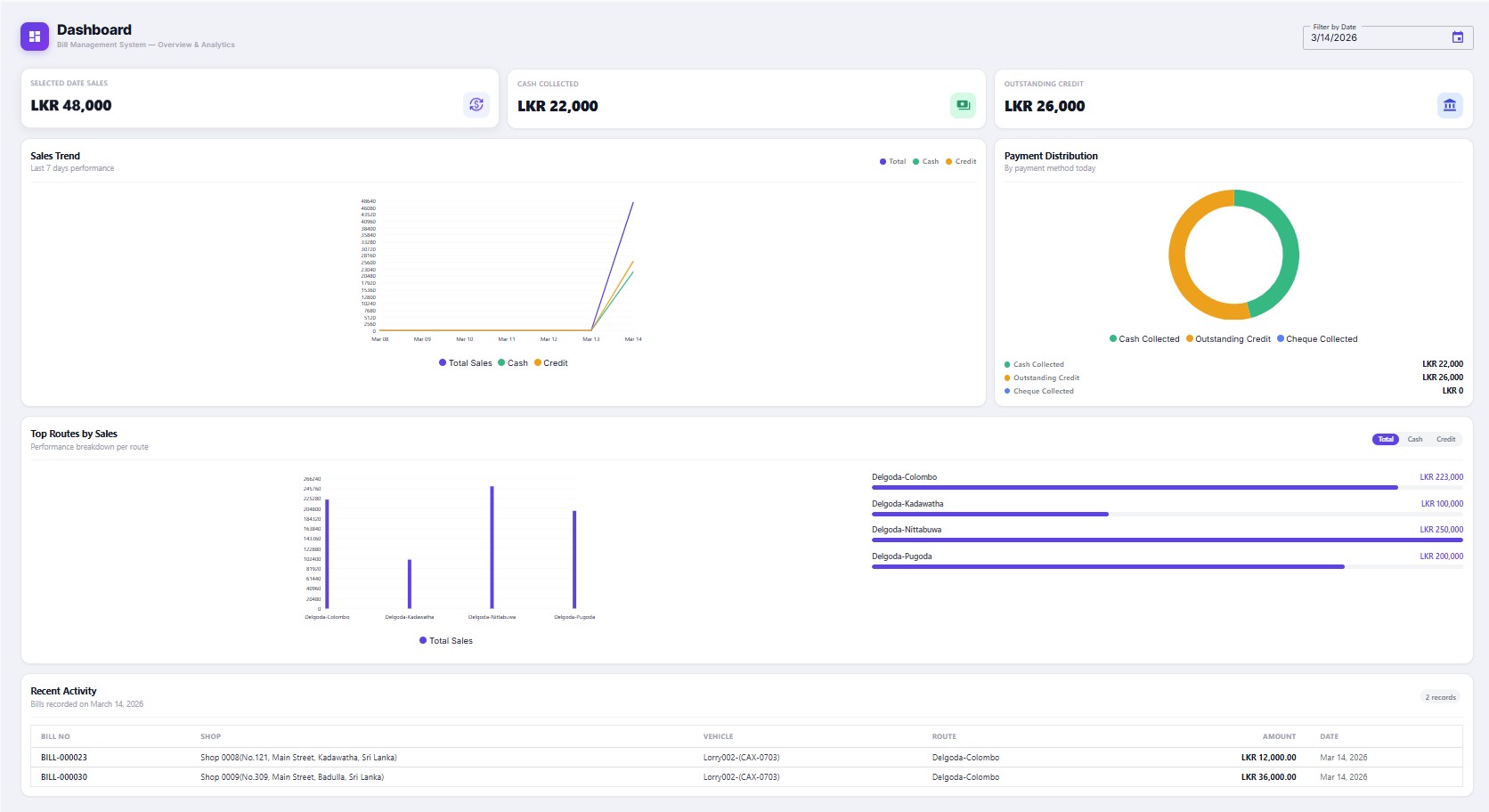
The Dashboard is the first screen you see after logging in. Use the Filter by Date picker (top-right) to review any past day. Every widget on the page refreshes to reflect the selected date — making it the go-to screen for daily close-out checks and management reviews.
Sale Summary — KPI Strip
Sales Trend
Multi-line chart showing the last 7 days of performance across three series: Total Sales (blue), Cash (green), and Credit (orange). The divergence between the Total and Cash lines reveals growing credit exposure. The subtitle reads "Last 7 days performance" and the chart auto-scales to the data range so subtle day-to-day changes are always visible.
Payment Distribution
Donut chart splitting today's total collections into three segments: Cash Collected (green), Outstanding Credit (orange), and Cheque Collected (blue). A legend below shows the exact LKR value for each segment. In the example: Cash LKR 22,000 · Outstanding Credit LKR 26,000 · Cheque LKR 0. Use this to instantly assess the day's payment mix before closing the books.
Top Routes by Sales
Two-panel widget: a bar chart on the left and a ranked leaderboard on the right. The leaderboard shows each route name with a proportional progress bar and its total LKR amount. Use the toggle buttons (Total / Cash / Credit) to switch the ranking metric. Example rankings for March 14:
Recent Activity
A live data table of all bills recorded for the selected day. Columns: Bill No, Shop (name + full address), Vehicle (code), Route, Amount, and Date. The record count is shown in the top-right corner. This acts as a real-time activity log — the office team can verify that every route vehicle's bills have been entered and that totals are consistent before end-of-day close-out.
Billing
Raise, manage, and track every invoice across all routes, vehicles, and shops.
Bill List & Filters
Filter Bar
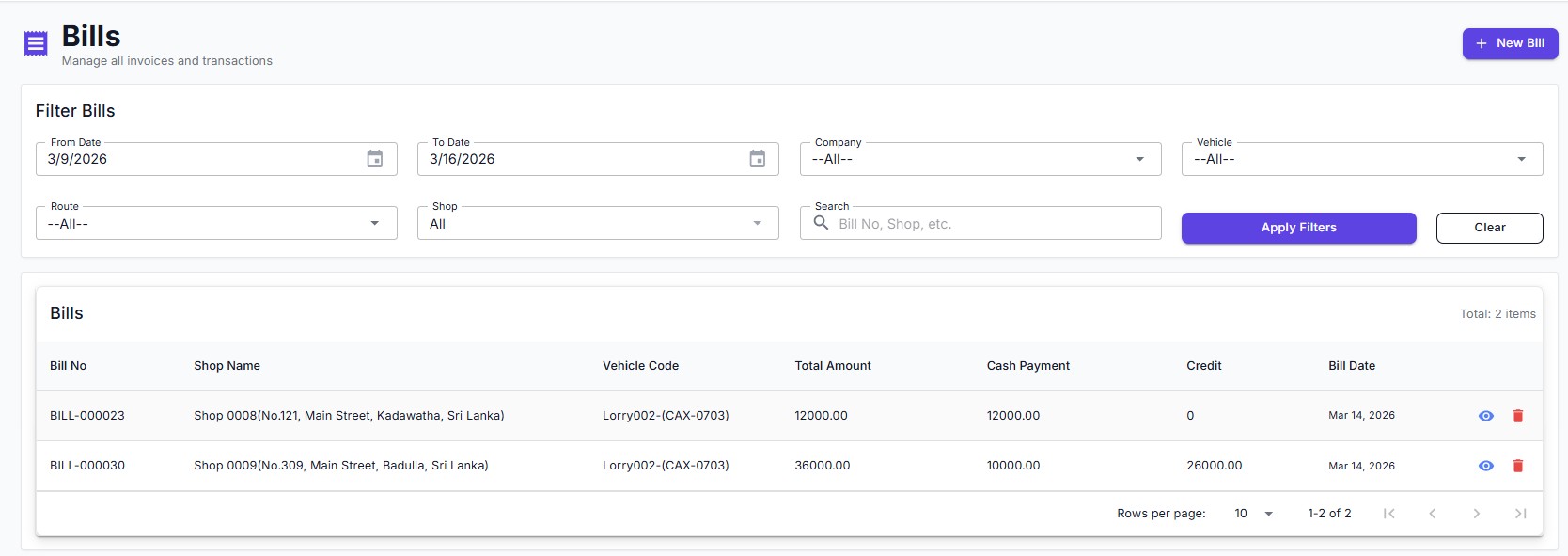
The Bills page opens with a Filter Bills panel containing six filter controls: From Date, To Date, Company, Vehicle, Route, and Shop. A free-text Search box accepts Bill No or Shop name. Click Apply Filters to refresh the results or Clear to reset all filters to their defaults.
Bills Table
Results are shown in a paginated table (default 10 rows per page) with columns: Bill No, Shop Name (with full address), Vehicle Code, Total Amount, Cash Payment, Credit balance, and Bill Date. Each row has a view icon (👁) to open Bill Details and a delete icon for draft bills. The total result count is shown in the top-right corner of the table.
Create / Edit Bill
Bill Items
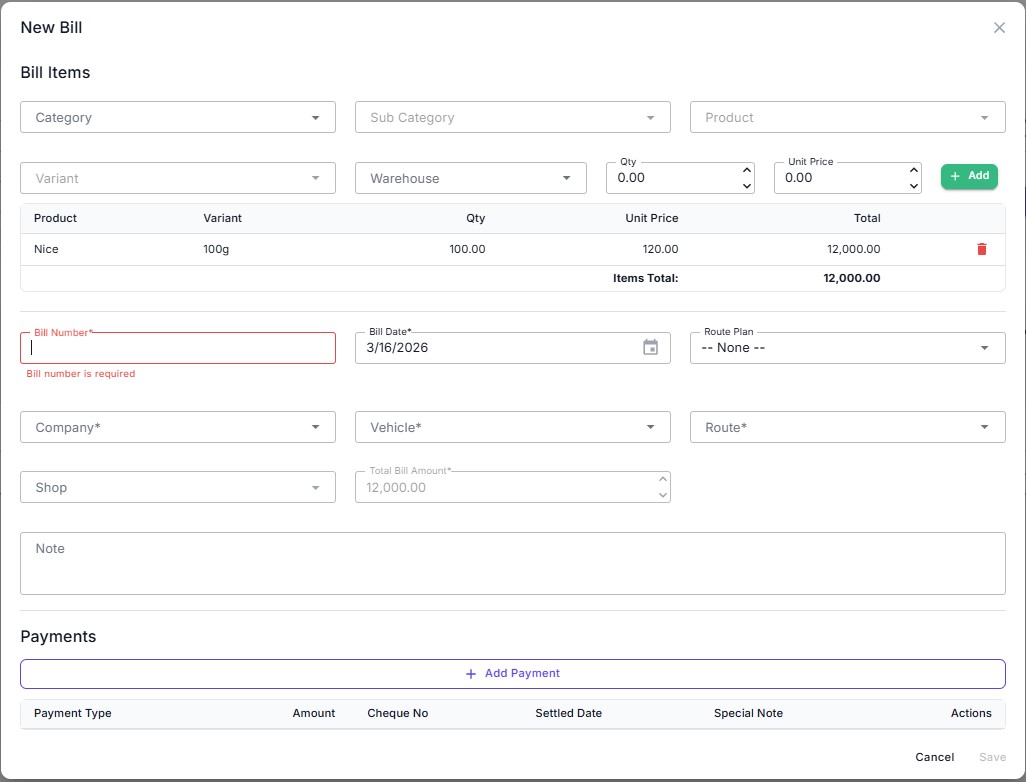
Select items using a cascading drill-down: Category → Sub Category → Product → Variant. Choose the source Warehouse, enter Qty and Unit Price, then click + Add to append the line. Multiple products can be added in a single bill. The line-item table shows Product, Variant, Qty, Unit Price, and Total per line, with a running Items Total at the bottom.
Bill Header
Required fields: Bill Number (manual entry — must be unique), Bill Date (defaults to today), Company, Vehicle, and Route. Optional: link to a Route Plan from the dropdown, select a Shop, and add a free-text Note. The Total Bill Amount field is read-only and is calculated automatically from the line items.
Payments
Click + Add Payment to open the payment entry row. Add one or more payments of different types against the same bill — for example, a partial cash payment with the remainder as credit. Each payment appears in the table with columns: Payment Type, Amount, Cheque No, Settled Date, Special Note, and Actions. Click Save to save the bill.
Bill Details
Bill Information Panel
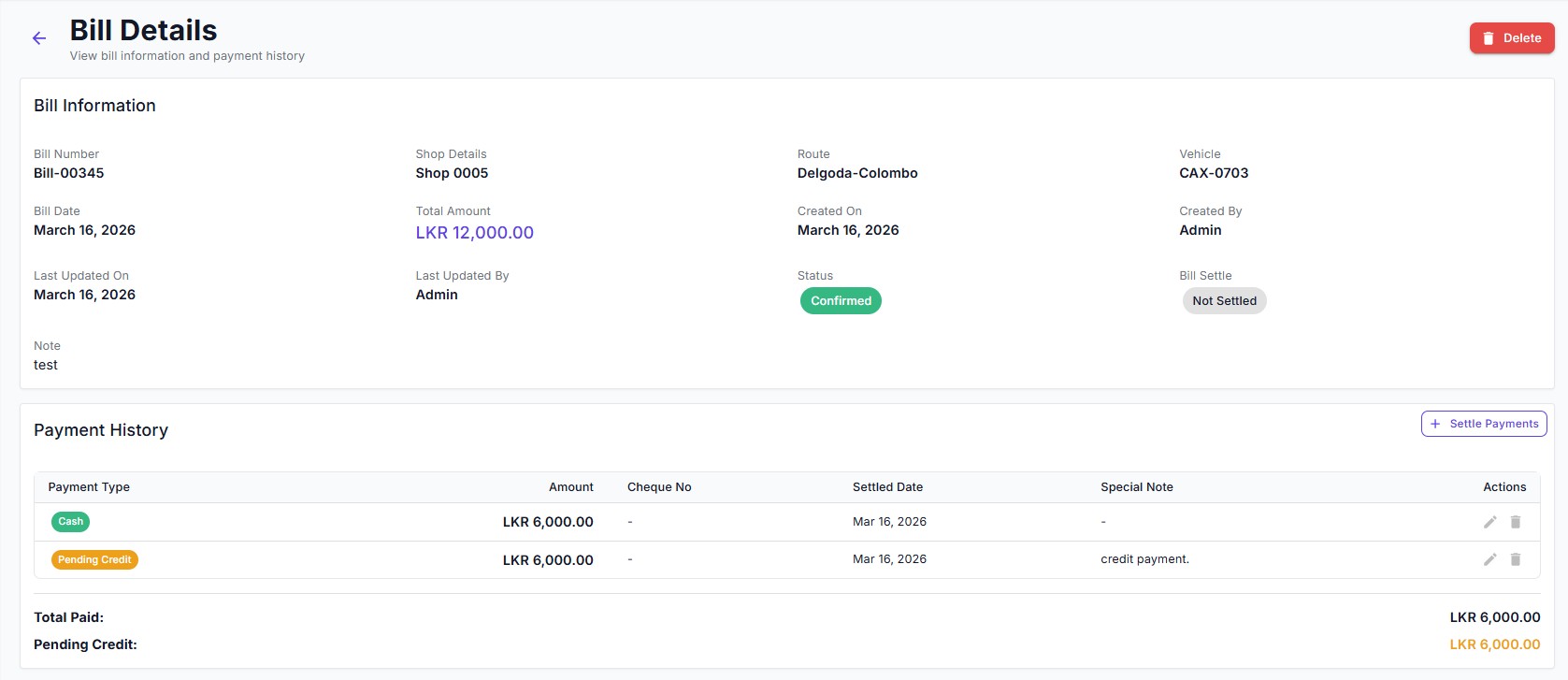
The detail page shows a structured summary of the bill: Bill Number, Shop Details, Route, Vehicle, Bill Date, Total Amount (highlighted in teal), Created On/By, Last Updated On/By, a Status badge (Confirmed or Draft), and a Bill Settle badge (Settled / Not Settled). The Delete button (top-right, red) is only available for unconfirmed bills.
Payment History
All payments recorded against the bill are listed in a table: Payment Type (colour-coded badge — Cash, Pending Credit, Cheque), Amount, Cheque No, Settled Date, Special Note, and Actions (edit / delete). The footer shows Total Paid and Pending Credit so the settlement status is immediately clear. Use the + Settle Payments button (top-right of the panel) to record additional payments.
Add / Settle Payment
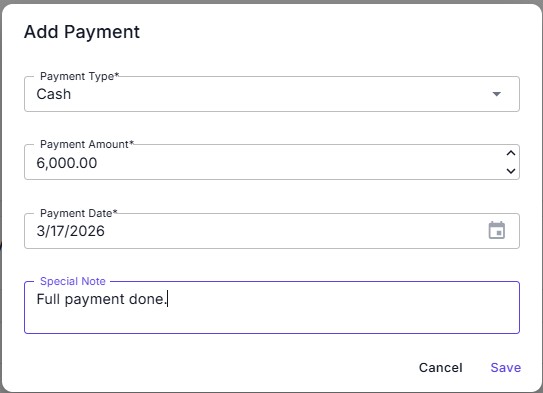
Add Payment Dialog
Click + Settle Payments on the Bill Details page to open the payment dialog. Four fields are available: Payment Type (Cash / Cheque / Credit), Payment Amount, Payment Date, and an optional Special Note (e.g. "Full payment done."). Click Save to record the payment or Cancel to discard.
Partial Payment Support
Bills can be settled in multiple installments. For example, a bill of LKR 12,000 may be split as LKR 6,000 Cash (immediate) and LKR 6,000 Pending Credit (to be collected later). Each installment is recorded separately in the Payment History. The Pending Credit balance updates in real time and feeds directly into the Credit Age Analysis report.
Payment Types Explained
- Cash — Immediate cash receipt; reflected in Cash Collected on the Dashboard KPI strip.
- Cheque — Records cheque number and settled date; tracked separately for cheque management.
- Credit — Creates a pending credit balance; aged daily in the Credit Age Analysis report until settled.
Expenses
Capture every business expense by category and vehicle — data flows automatically into reports with no double-entry.
Expense List & Filters
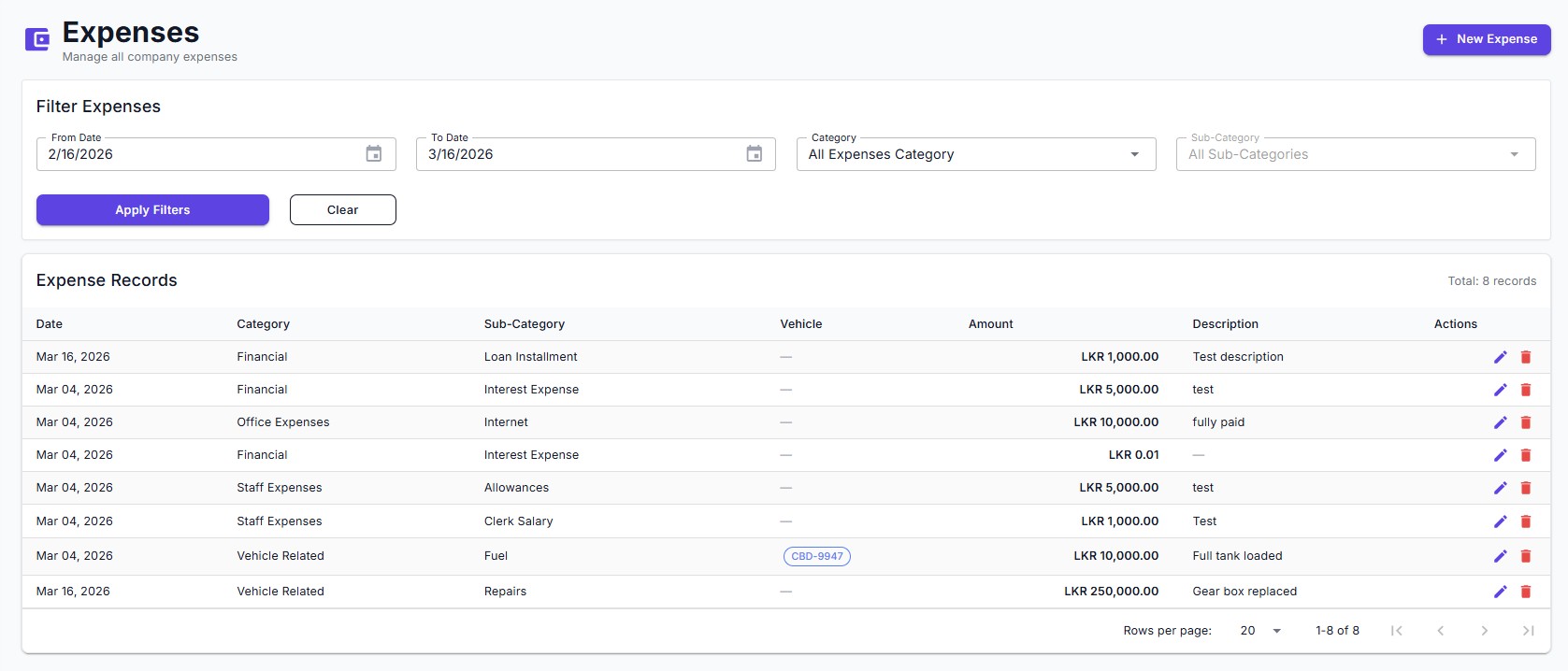
Filter Bar
The Expenses page opens with a Filter Expenses panel: From Date, To Date, Category (dropdown — All Expenses Category, Financial, Office Expenses, Staff Expenses, Vehicle Related, etc.), and Sub-Category (dynamically populated based on the selected Category). Click Apply Filters to refresh results or Clear to reset.
Expense Records Table
Results appear in the Expense Records table with columns: Date, Category, Sub-Category, Vehicle (shown as a badge when applicable, e.g. CBD-9947; a dash when not vehicle-related), Amount, Description, and Actions (edit pencil / delete). The record count is shown in the top-right corner. Example records visible include Financial / Loan Installment (LKR 1,000), Office Expenses / Internet (LKR 10,000), Staff Expenses / Clerk Salary (LKR 1,000), and Vehicle Related / Fuel (LKR 10,000 — vehicle CBD-9947).
Add Expense — Non-Vehicle Category
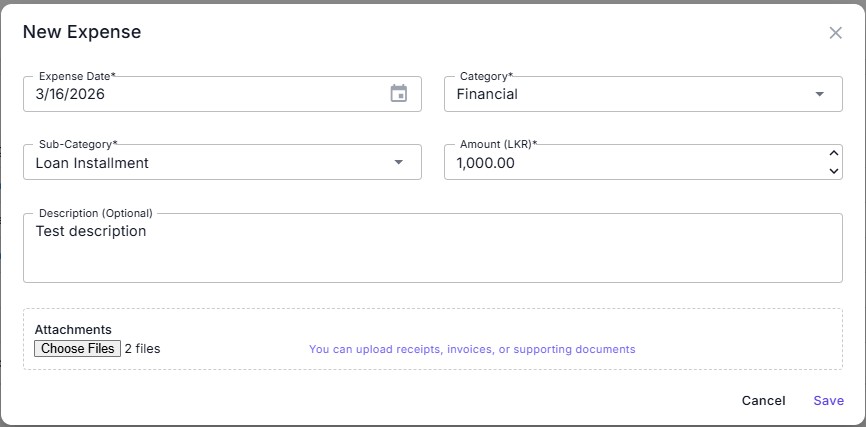
Fields
For non-vehicle categories (e.g. Financial, Staff Expenses, Office Expenses), the dialog shows four fields: Expense Date, Category, Sub-Category, and Amount (LKR). An optional Description text area is available for notes. The Vehicle field is hidden for non-vehicle categories.
Attachments
Use Choose Files to upload one or more supporting documents — receipts, invoices, or any relevant file. Uploaded files are stored against the expense record for future reference and audit purposes.
Add Expense — Vehicle Related Category
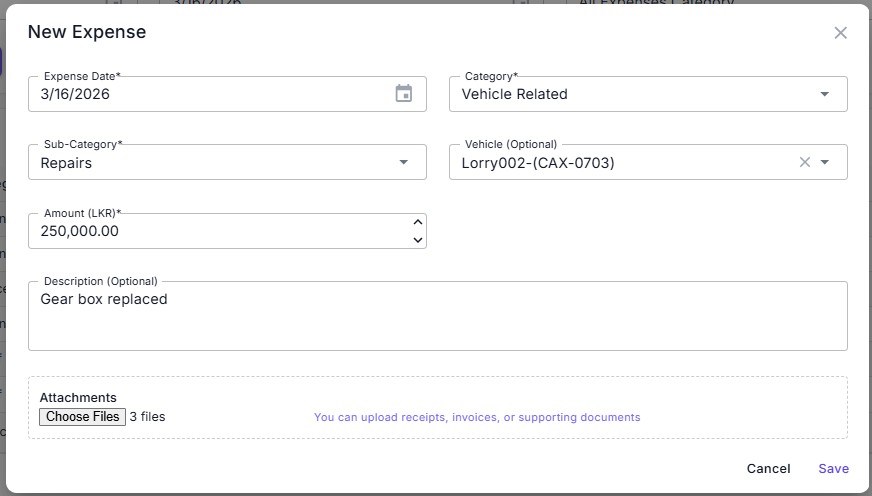
Vehicle Field
When the Category is set to Vehicle Related, an additional Vehicle (Optional) dropdown appears. Select the specific vehicle (e.g. Lorry002-(CAX-0703)) to link the expense to that vehicle's cost history. Sub-categories include Fuel, Repairs, Tyres, and more.
Example
The screenshot shows a repair expense of LKR 250,000 for vehicle Lorry002-(CAX-0703) under Sub-Category Repairs, with the description "Gear box replaced" and 3 attachment files uploaded.
Report Integration
All expenses — regardless of category — feed directly into the Expense Report (filterable by category and vehicle) and the Profit & Loss report as operating costs. No separate data entry is required.
Vehicle Management
Complete fleet visibility — real-time odometer tracking, maintenance scheduling, and daily route planning from one place.
Vehicle Dashboard
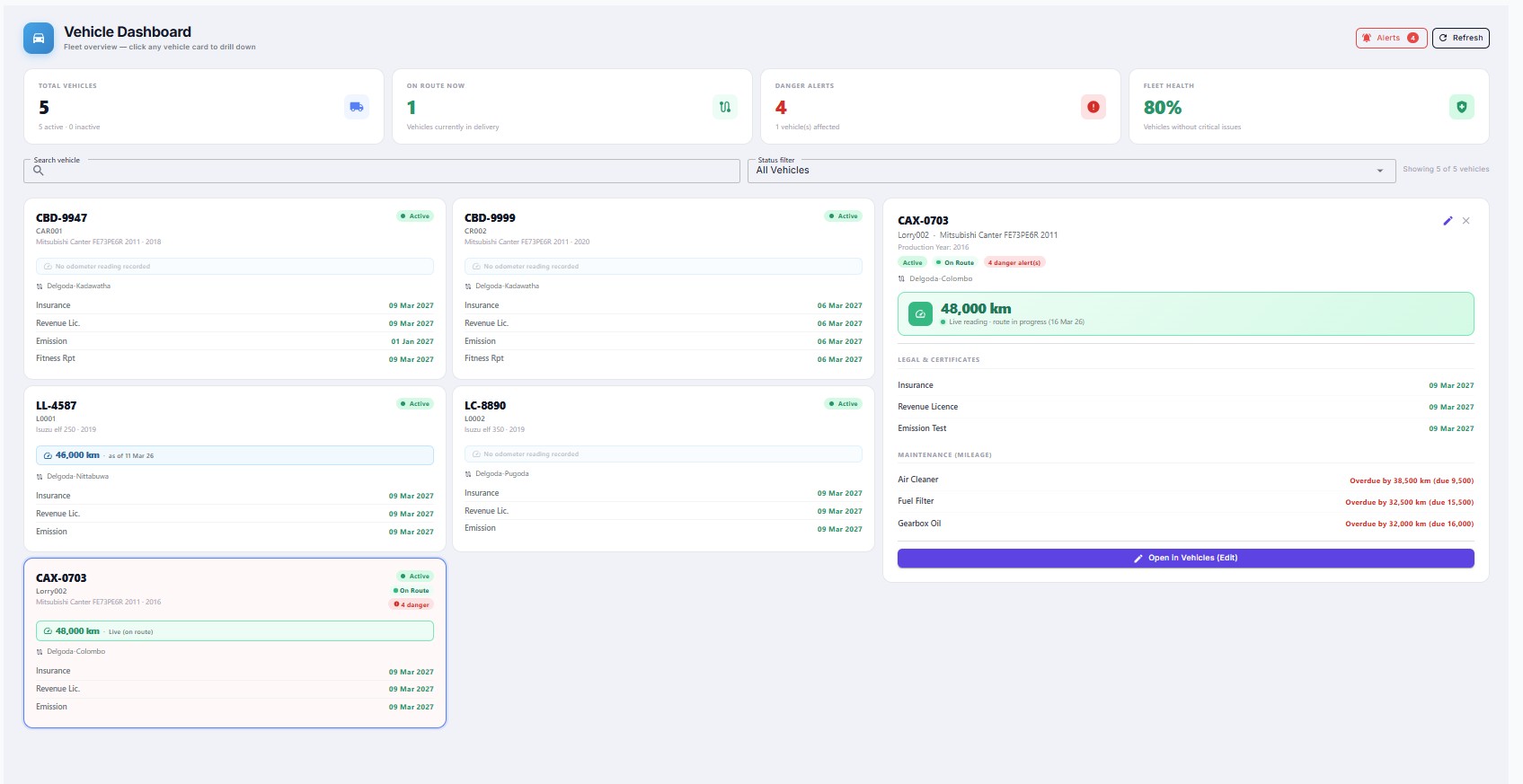
KPI Strip
Vehicle Cards Grid
Each vehicle is displayed as a card showing Registration No, Vehicle Code, Type, Active status badge, and any live indicators — On Route and Danger alert(s). Below the status badges, the odometer reading is displayed (e.g. 46,000 km as of 11 Mar 26). Vehicles with no recorded odometer show a grey "No odometer reading recorded" notice. Legal/certificate due dates (Insurance, Revenue Lic., Emission, Fitness Rpt) are listed in orange for overdue or upcoming items. Use the Search vehicle box and Status Filter dropdown to narrow the grid.
Vehicle Detail Panel
Click any vehicle card to open a slide-in detail panel on the right. The panel shows the vehicle's full name and model, all status badges, the live odometer reading in a prominent green block (e.g. 48,000 km — Live reading · route in progress), Legal & Certificates due dates, and Maintenance (Mileage) items with overdue status. An Open in Vehicles (Edit) button navigates directly to the vehicle edit form.
Vehicles

Vehicle Registry
The Vehicles page is the master register for all fleet vehicles. Filter by Registration No / Vehicle Code (text search), Route, and Status (Only Active / Inactive / All). The table shows Reg. No, Code, Type (e.g. Mitsubishi Canter FE73PE6R 2011), Year, Features, Routes assigned, Clerks assigned, Status badge, and Actions (edit / delete). Click + Add Vehicle (top-right) to register a new vehicle.
Add / Edit Vehicle — Tabbed Form
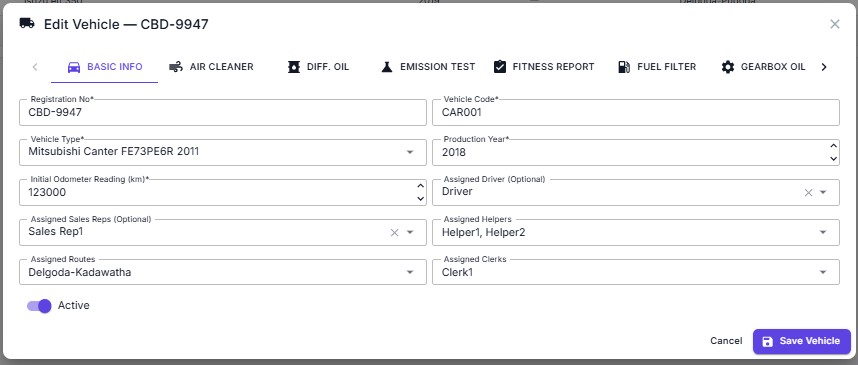
Basic Info tab
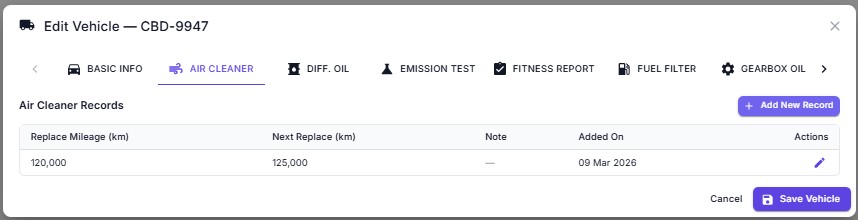
Mileage maintenance tab (e.g. Air Cleaner)
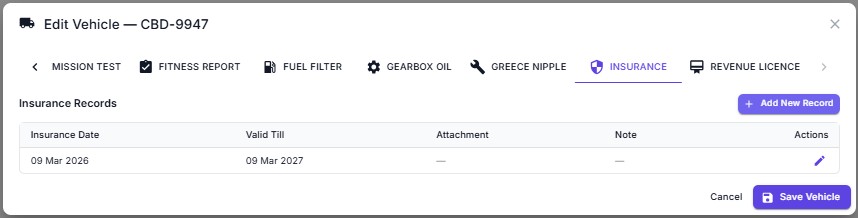
Certificate tab (e.g. Insurance)
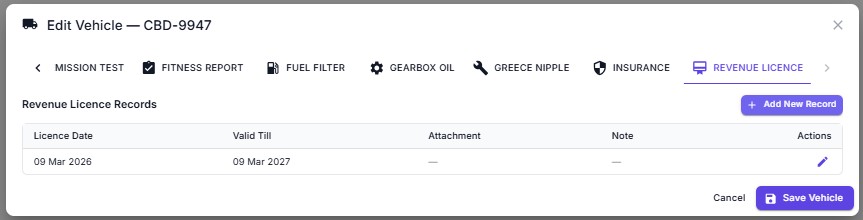
Certificate tab (e.g. Revenue Licence)
Basic Info Tab
Mandatory fields: Registration No, Vehicle Code, Vehicle Type, Production Year, and Initial Odometer Reading (km) — the baseline km used for first-time mileage alert calculations. Optional assignments: Driver, Sales Reps, Helpers, Routes, and Clerks. Toggle Active to enable or disable the vehicle across the system.
Mileage Maintenance Tabs
Five tabs track kilometre-based service intervals: Air Cleaner, Differential Oil, Fuel Filter, Gearbox Oil, and Greece Nipple. Each tab maintains a history of service records with Replace Mileage (km) (the odometer reading when the service was done), Next Replace (km) (the odometer reading at which the next service is due), Note, and Added On date. The Vehicle Alerts module compares the vehicle's live odometer against these Next Replace thresholds to raise overdue / upcoming alerts.
Certificate & Legal Tabs
Five tabs track date-based compliance: Emission Test, Fitness Report, Insurance, Revenue Licence, and Mission Test. Each record stores Date, Valid Till, an optional Attachment (upload the certificate scan), and a Note. Expiry dates feed into the Vehicle Dashboard card view and the Alerts module so compliance deadlines are never missed.
Vehicle Alerts
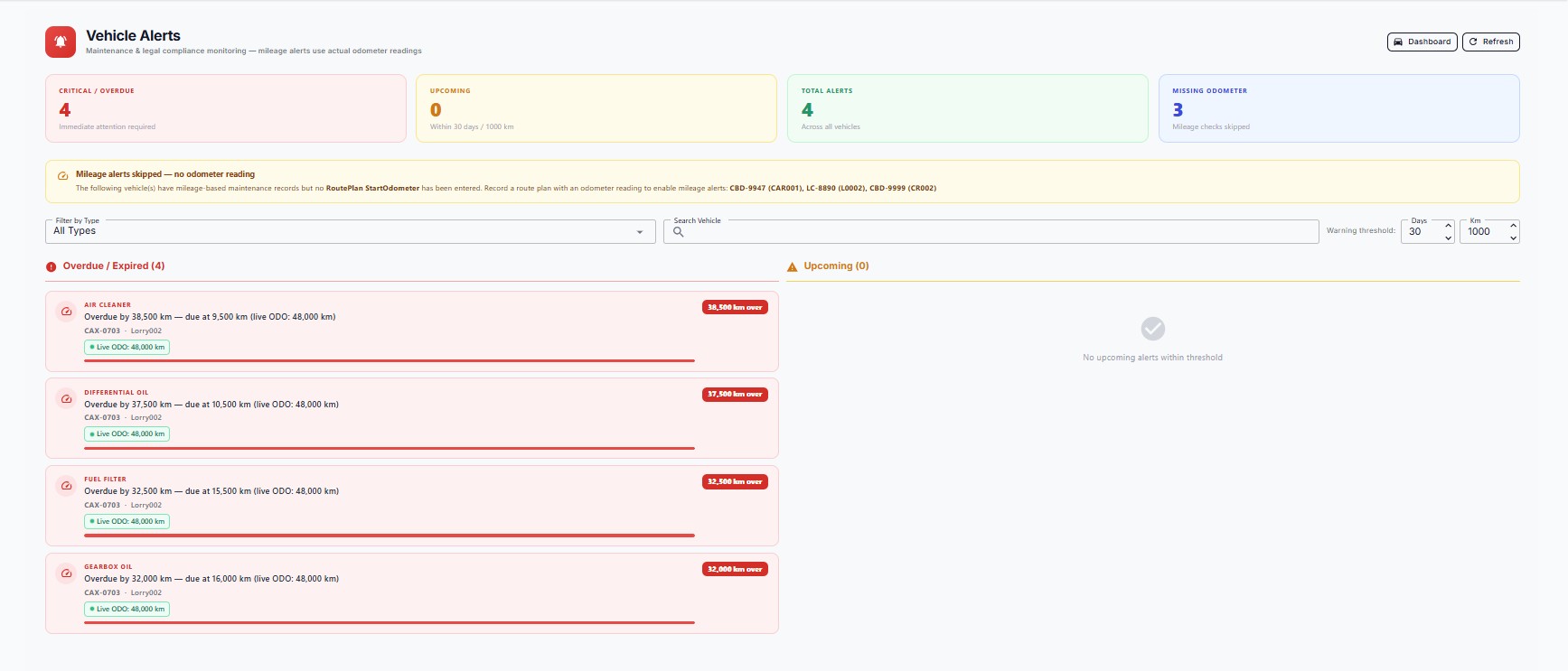
KPI Strip
Missing Odometer Banner
A yellow warning banner lists vehicles that have mileage-based maintenance records but no RoutePlan StartOdometer recorded. For these vehicles, mileage alerts cannot be calculated. The banner names each affected vehicle (e.g. CBD-9947 (CAR001), LC-8890 (L0002), CBD-9999 (CR002)) and prompts the user to record a route plan with an odometer reading.
Overdue / Expired Section
All overdue maintenance items are listed with a red alert card showing: Maintenance type (e.g. AIR CLEANER), Overdue distance (e.g. Overdue by 38,500 km — due at 9,500 km (live ODO: 48,000 km)), Vehicle (CAX-0703 · Lorry002), a Live ODO: 48,000 km badge, a red progress bar showing how far past due the vehicle is, and an overdue km badge (e.g. 38,500 km over).
Upcoming Section & Warning Threshold
The right column shows alerts due within the configured threshold — default 30 days and 1,000 km. These thresholds are adjustable via the Warning threshold controls at the top-right. Use the Filter by Type dropdown and Search Vehicle box to focus on specific maintenance types or vehicles.
Route Plans
Route Plan List
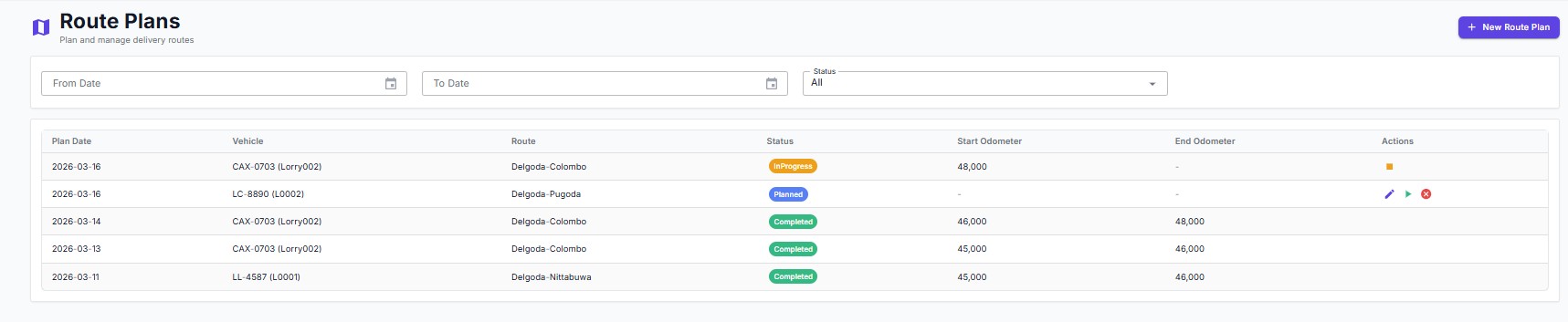
Route Plan List
The Route Plans page lists all plans filterable by From Date, To Date, and Status (All / Planned / InProgress / Completed). The table shows Plan Date, Vehicle (code + name), Route, Status badge (InProgress, Planned, Completed), Start Odometer, End Odometer, and Actions. An InProgress plan has no End Odometer — indicating the vehicle is currently on route.
Create Route Plan
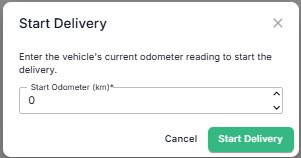
Start Delivery
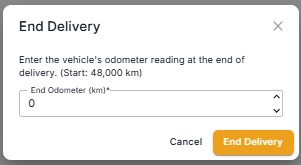
End Delivery
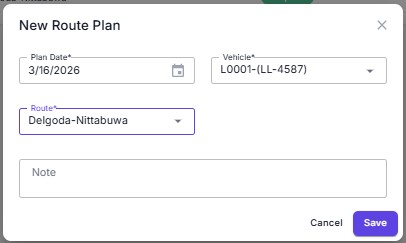
Create Route Plan
Click + New Route Plan to open the dialog. Required fields: Plan Date, Vehicle, and Route. An optional Note field is available. The new plan is saved with status Planned.
Start Delivery
When the vehicle is ready to leave, click the Start action on the route plan row. The Start Delivery dialog prompts for the vehicle's current Start Odometer (km). Confirming moves the plan to InProgress status. This odometer reading is used as the vehicle's live odometer on the Dashboard and in Alerts.
End Delivery
When the vehicle returns, click End. The End Delivery dialog shows the recorded start reading (e.g. Start: 48,000 km) and prompts for the End Odometer (km). Saving records the final reading and moves the plan to Completed. The difference between start and end is the day's distance travelled. The end odometer becomes the vehicle's most recent odometer reading used for all mileage alert calculations.
Stock Management
End-to-end inventory control — receipt, issue, transfer, adjustment, physical count, returns, reservations, and batch tracking.
①Stock Balance
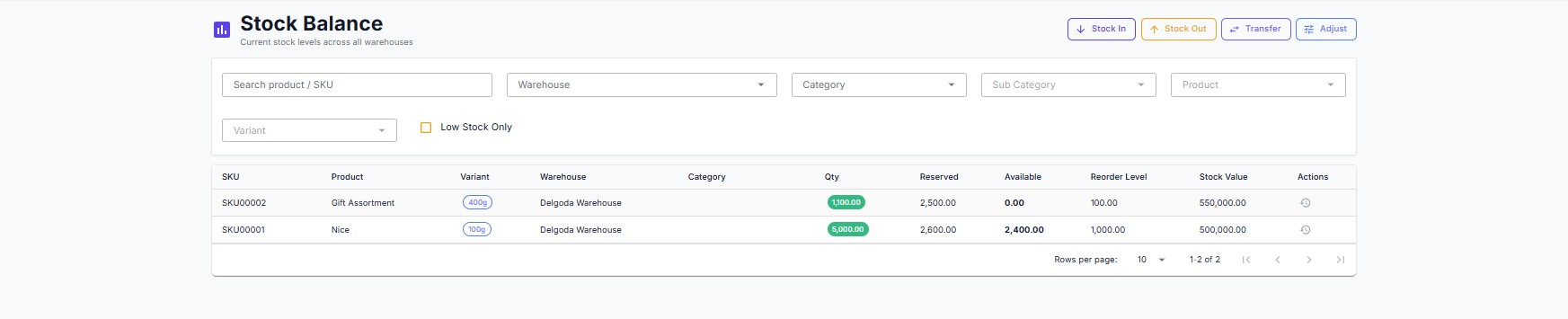
Real-time inventory levels per product, variant, and warehouse. Four action buttons at the top — Stock In, Stock Out, Transfer, and Adjust — open the respective transaction form.
Balance Table Columns
SKU · Product · Variant badge · Warehouse · Category · Qty (colour-coded) · Reserved · Available · Reorder Level · Stock Value · Actions (history icon). Filters: Search by product/SKU, Warehouse, Category, Sub Category, Product, Variant, Low Stock Only checkbox.
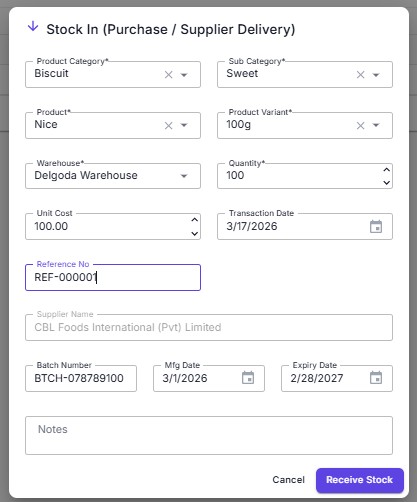
Stock In
Fields: Category, Sub Category, Product, Variant, Warehouse, Qty, Unit Cost, Transaction Date, Reference No, Supplier Name, Batch Number, Mfg Date, Expiry Date, Notes. Confirms with “Receive Stock”.
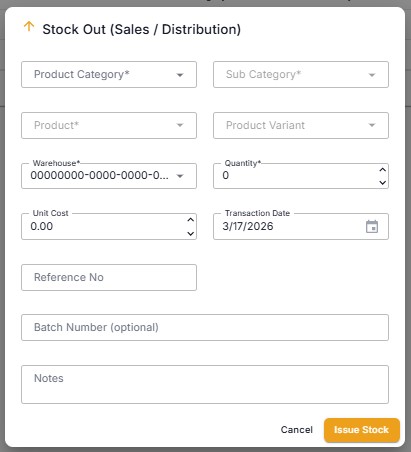
Stock Out
Same field set as Stock In. Deducts from the selected warehouse balance. Confirms with “Issue Stock”.
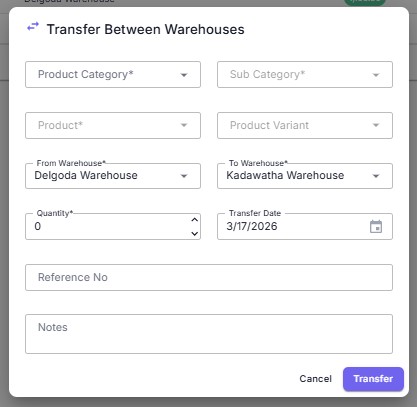
Transfer Between Warehouses
Move stock between warehouses: Product, Variant, From Warehouse, To Warehouse, Quantity, Transfer Date, Reference No, Notes. Confirms with “Transfer”.
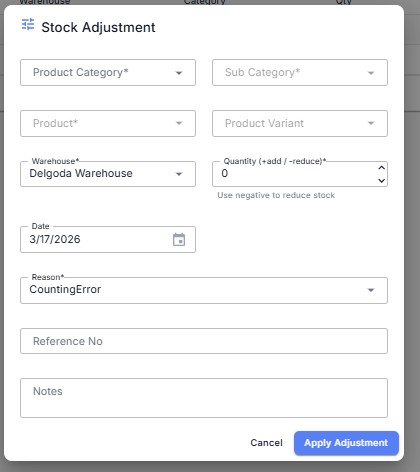
Stock Adjustment
Correct count discrepancies: Product, Variant, Warehouse, Quantity (+add / -reduce), Date, Reason (e.g. Counting Error), Reference No, Notes. Confirms with “Apply Adjustment”.
②Stock Ledger
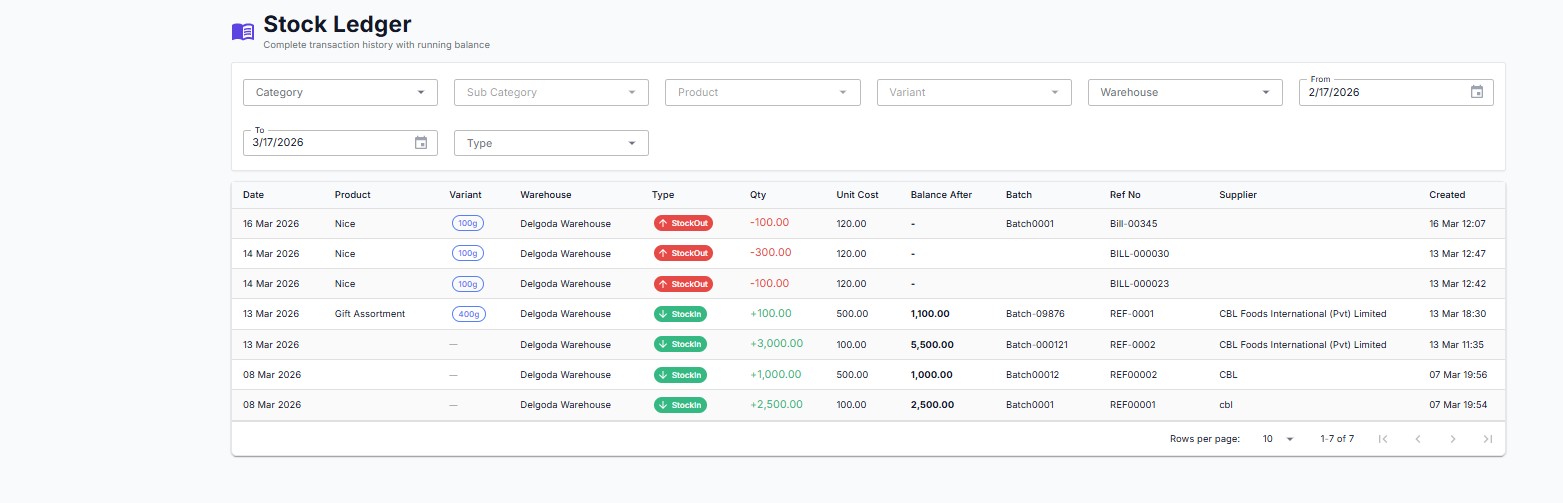
Full Movement History
Every stock movement in chronological order. Columns: Date · Product · Variant · Warehouse · Type badge (StockOut / StockIn colour-coded) · Qty (±) · Unit Cost · Balance After · Batch · Ref No · Supplier · Created by.
Filters: Category, Sub Category, Product, Variant, Warehouse, From / To date range, Movement Type.
③Products & Categories
Product List
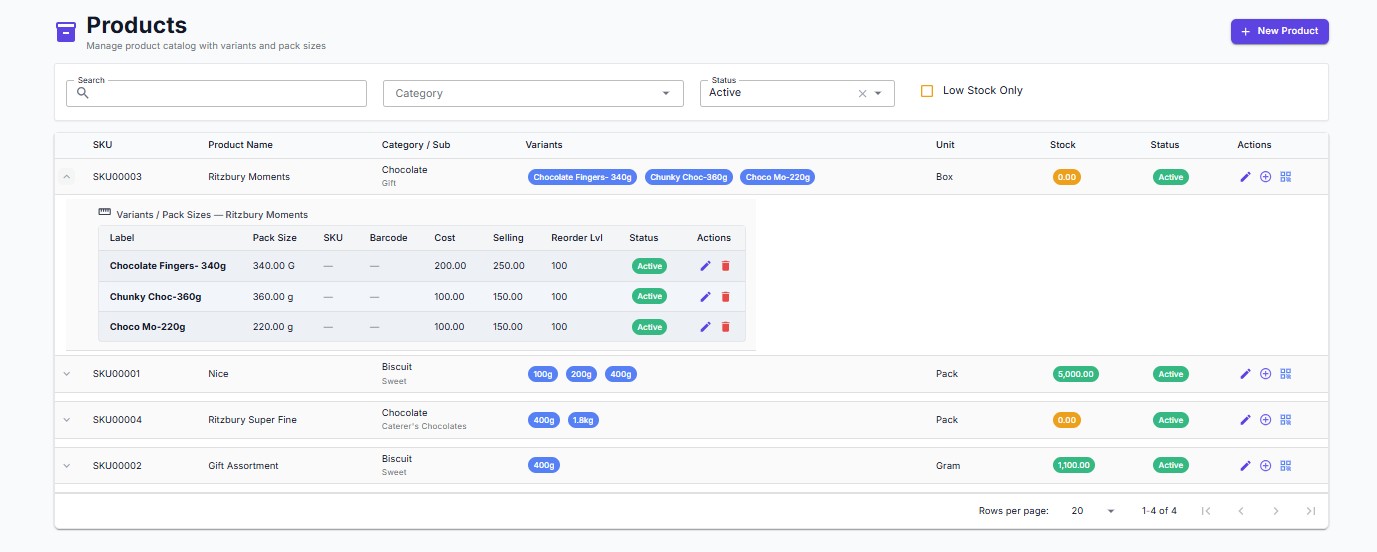
Expandable rows reveal variant sub-table (Label, Pack Size, SKU, Barcode, Cost, Selling, Reorder Lvl, Status). Columns: SKU, Product Name, Category/Sub, Variants badges, Unit, Stock badge, Status. Actions: edit / add variant / grid. Filters: Search, Category, Status (Active / Low Stock Only).
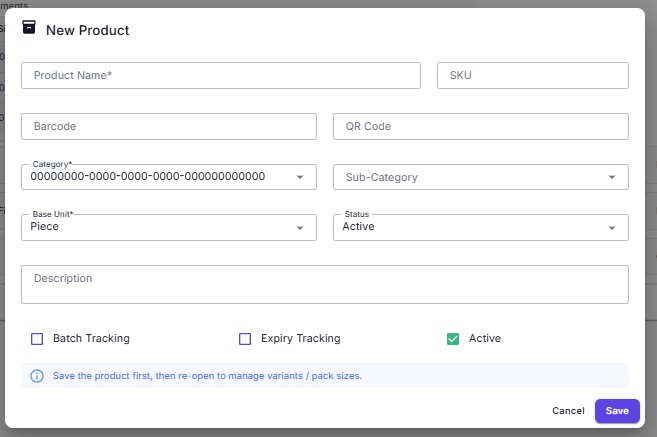
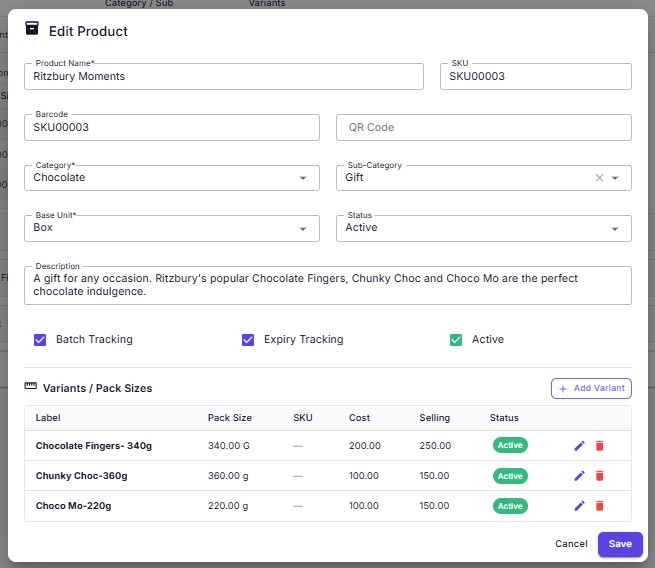
Add New Product
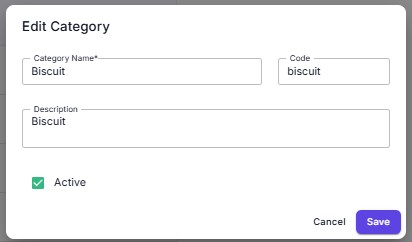
Fields: Name, SKU, Barcode, QR Code, Category, Sub-Category, Base Unit, Status, Description. Toggles: Batch Tracking and Expiry Tracking — enabling these unlocks batch/expiry fields on all stock transactions for that product.
Edit Product
Same fields as Add. Allows updating product details, toggling Active status, and managing batch/expiry tracking settings after initial creation.
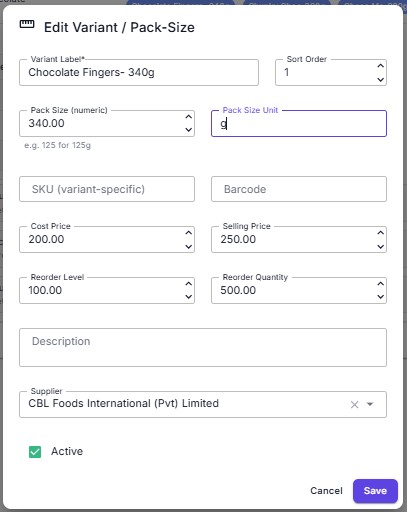
Edit Variant
Per-variant config: Variant Label, Sort Order, Pack Size, Pack Size Unit, SKU, Barcode, Cost Price, Selling Price, Reorder Level, Reorder Quantity, Description, Supplier, Active toggle.
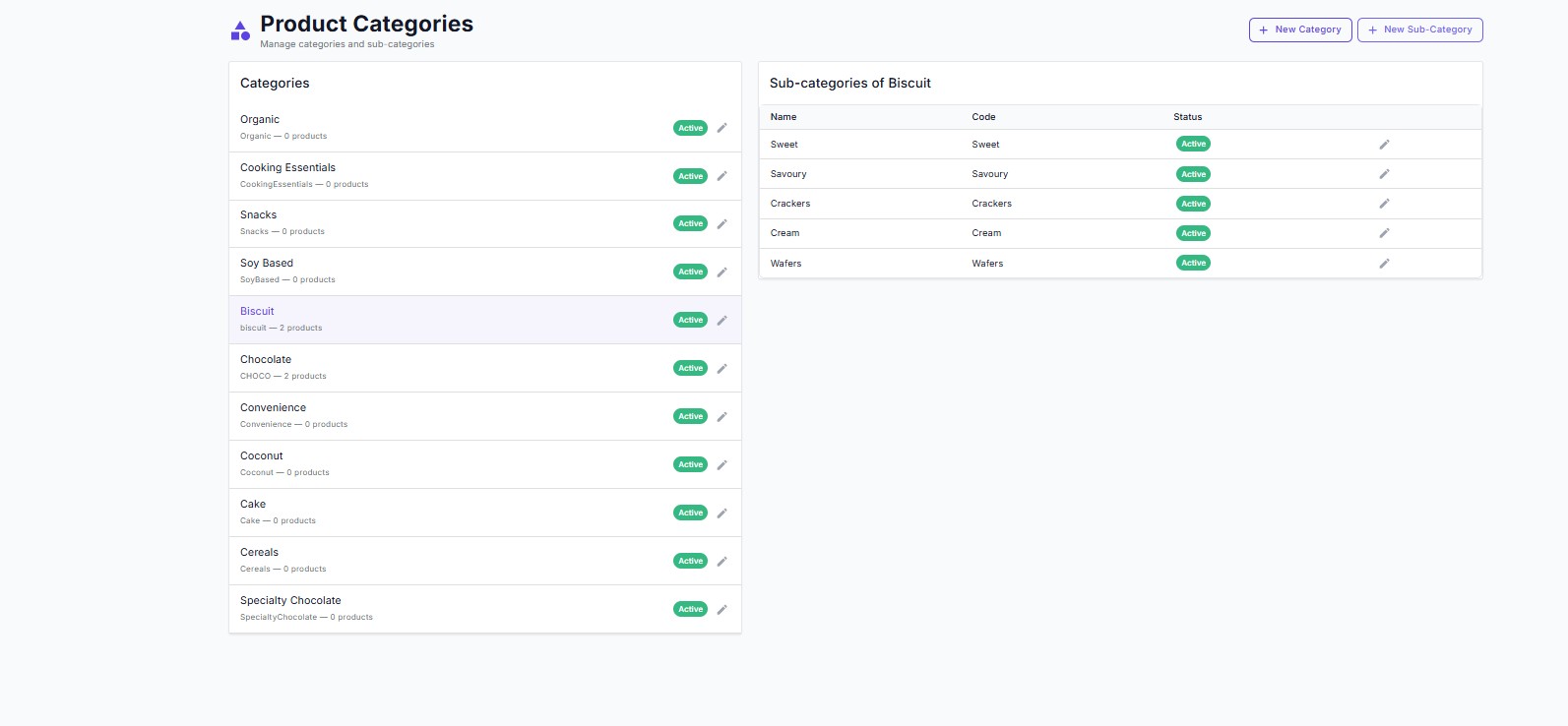
Categories Overview
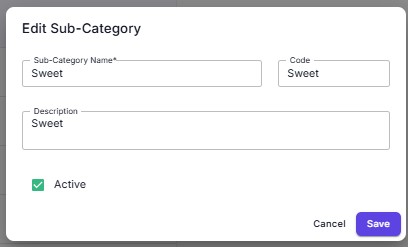
Two-panel layout showing all categories on the left and their sub-categories on the right (Name, Code, Status). Products must always be linked to a Category → Sub-Category path.
④Warehouses & Stock Alerts
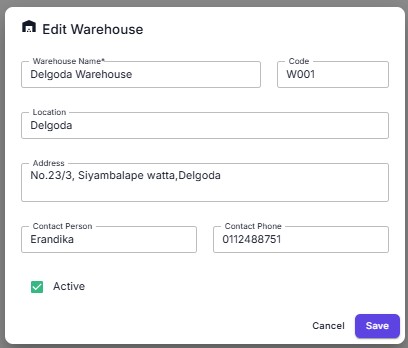
Warehouses
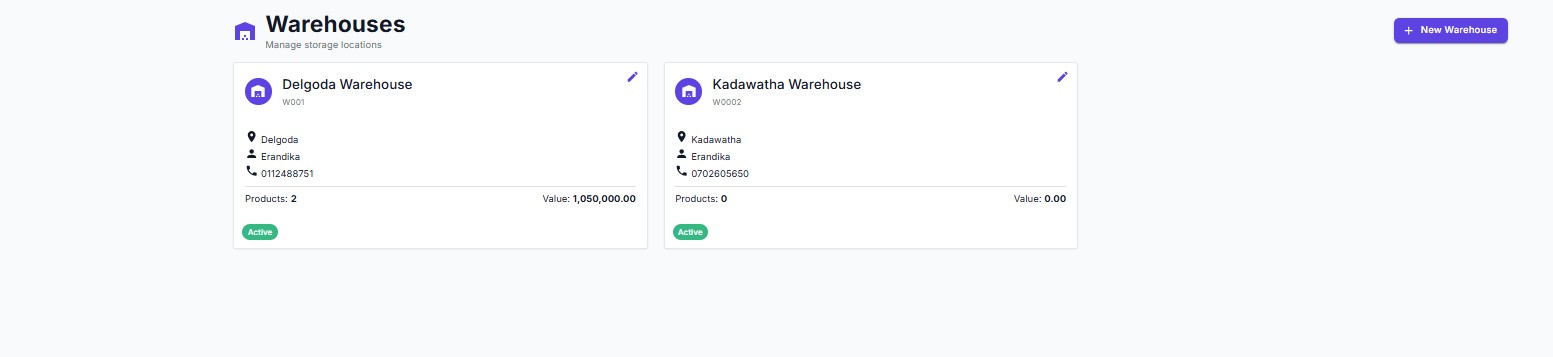
Card view: Warehouse Name, Code, Location, Contact, Phone, Products count, Total Value, Active badge. All stock transactions are scoped to a warehouse, enabling full multi-site inventory tracking from one system.
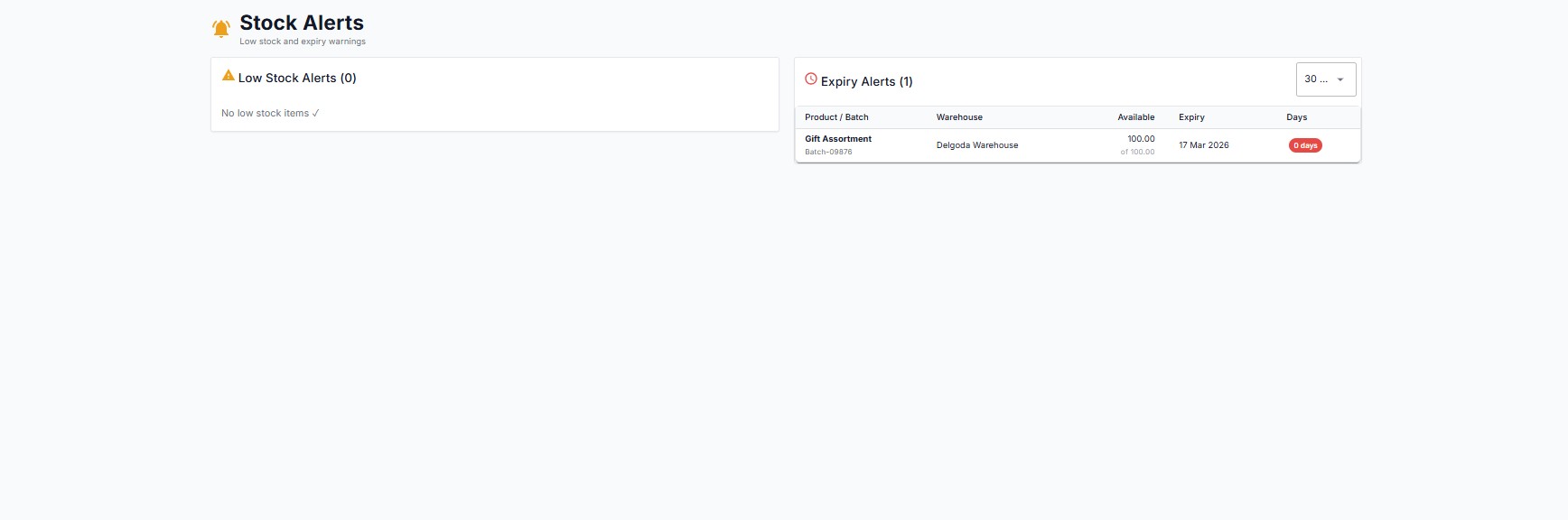
Stock Alerts
Two panels: Low Stock Alerts — products whose available quantity has fallen below the configured reorder level; Expiry Alerts — batches approaching or past their expiry date (Batch No, Product, Warehouse, Available Qty, Expiry Date, Days Remaining badge).
⑤Physical Stock Count
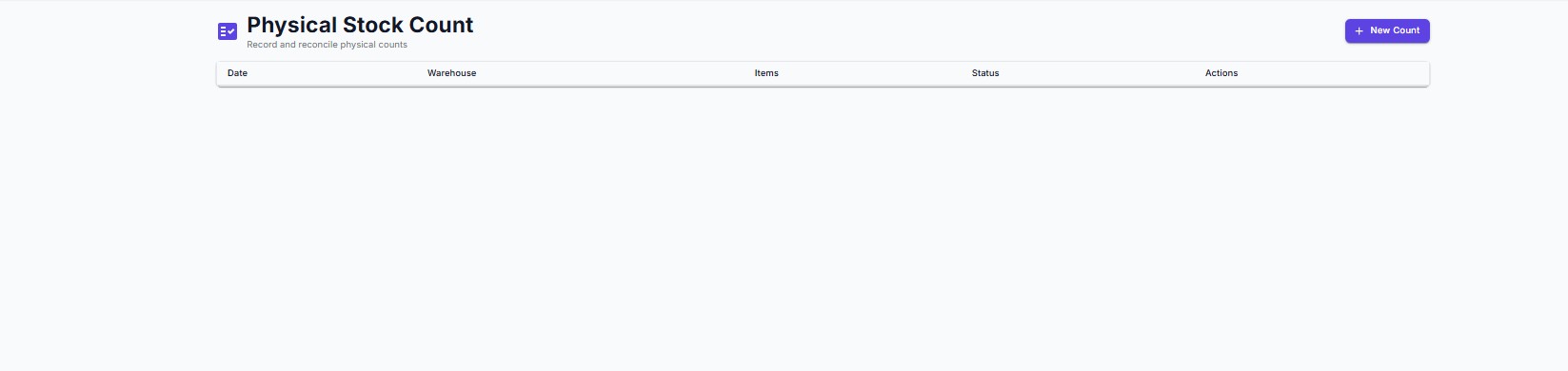
Count Sessions
Each physical count is a session: Date, Warehouse, Items counted, Status. “+ New Count” starts a new session for the selected warehouse.
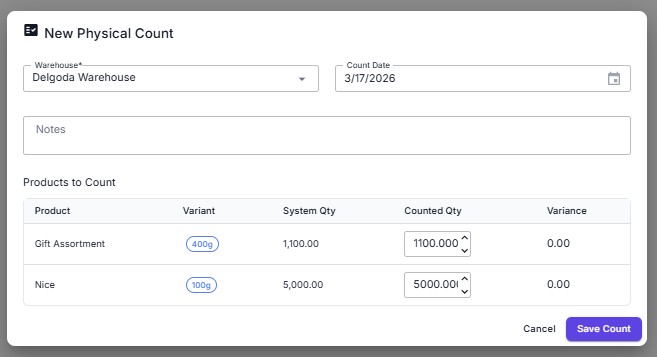
Count Form
Fields: Warehouse, Count Date, Notes, and an inline table — Product, Variant, System Qty (read-only), Counted Qty (editable), Variance (auto-calculated). Save posts adjustment entries for any non-zero variance lines.
⑥Returns, Reservations & Batches
Three tabs on one page: PRODUCT RETURNS, STOCK RESERVATIONS, and BATCHES.

Product Returns
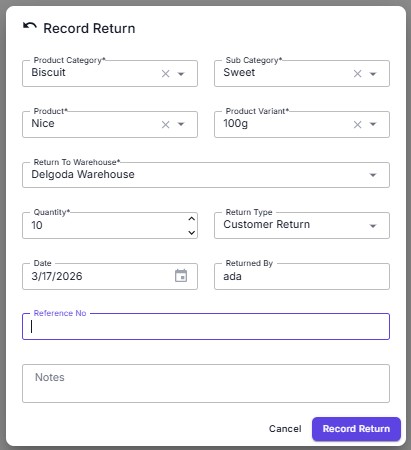
Fields: Category, Sub Category, Product, Variant, Return To Warehouse, Quantity, Return Type (e.g. Customer Return), Date, Returned By, Reference No, Notes. Confirms with “Record Return”.

Stock Reservations
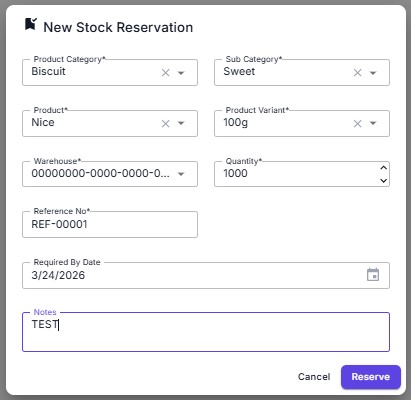
Reserve stock for upcoming deliveries: Category, Sub Category, Product, Variant, Warehouse, Quantity, Reference No, Required By Date, Notes. Reserved qty is deducted from available-to-sell to prevent double-allocation. Confirms with “Reserve”.

Batches
Active Batches table: Batch #, Product, Warehouse, Qty, Mfg Date, Expiry Date, Status badge (OK / Expiring). Expiry tracking must be enabled on the product for entries to appear here.
⑦Stock Reports
Stock Balance Report
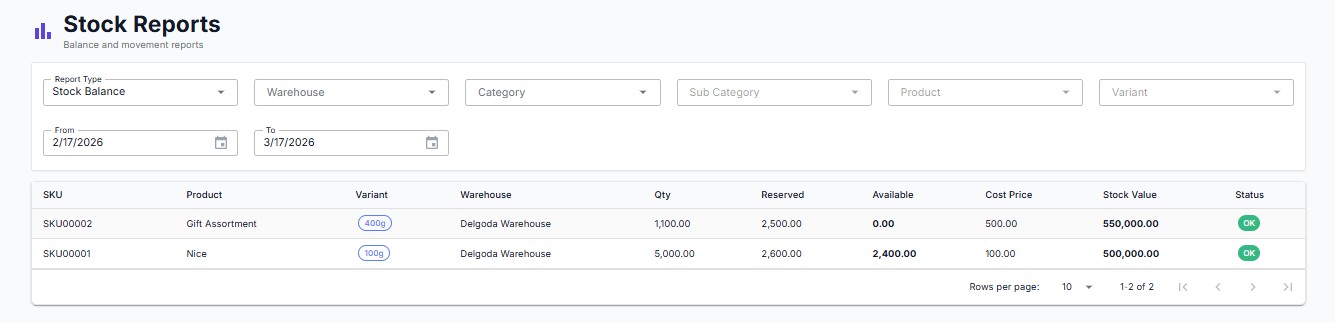
Filters: Report Type (Stock Balance), Warehouse, Category, Sub Category, Product, Variant, From / To date range. Results table: SKU · Product · Variant · Warehouse · Qty · Reserved · Available · Cost Price · Stock Value · Status (OK badge). Quickly assess stock positions and value across all warehouses.
Reports
Five dedicated report types covering every financial and operational dimension of your distribution business.
①Day Summary Report
Filters
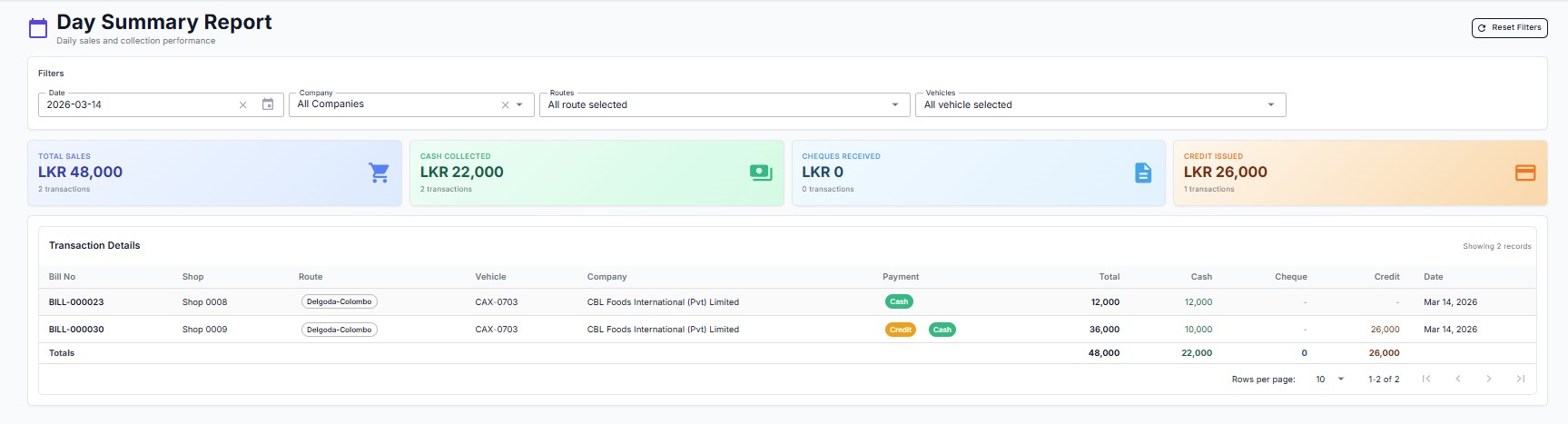
Date, Company, Routes (multi-select), Vehicles (multi-select), Reset Filters.
KPI Cards
Total Sales (e.g. LKR 48,000 / 2 transactions) · Cash Collected (LKR 22,000) · Cheques Received (LKR 0) · Credit Issued (LKR 26,000).
Transaction Details Table
Columns: Bill No · Shop · Route badge · Vehicle · Company · Payment type badges · Total · Cash · Cheque · Credit · Date. Footer row shows period Totals. The primary starting point for daily financial close-out.
②Credit Age Analysis Report
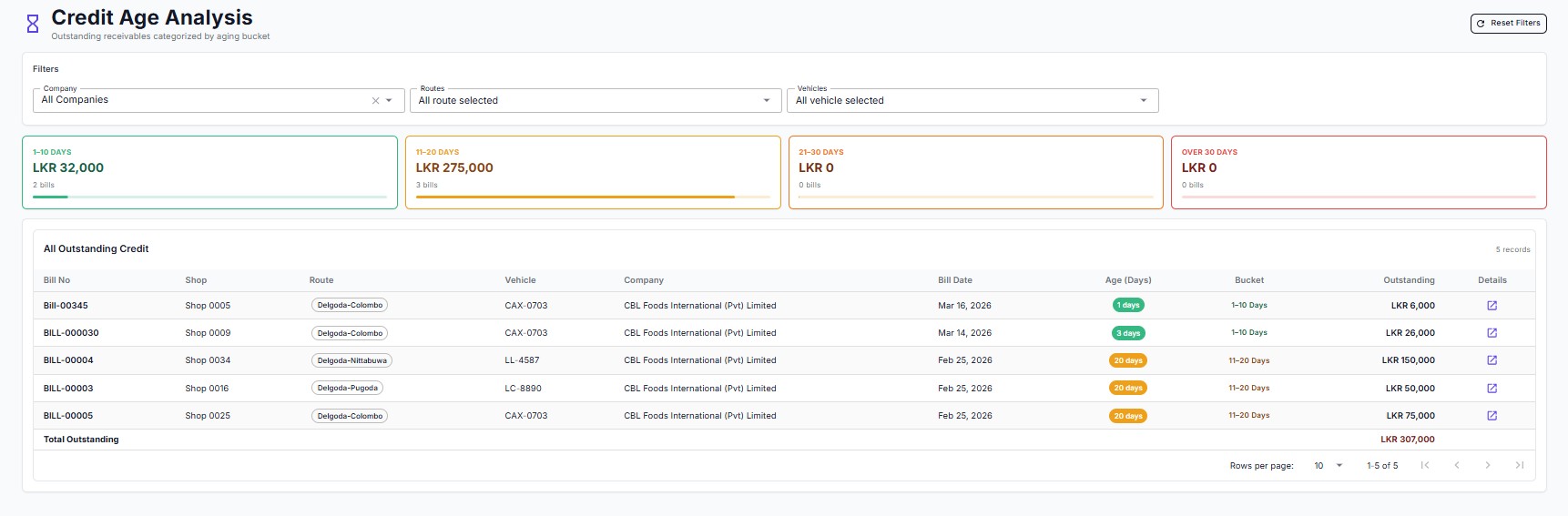
Filters
Company, Routes, Vehicles.
Aging Bucket Cards
1–10 Days · 11–20 Days · 21–30 Days · Over 30 Days. Each card shows total outstanding and bill count (e.g. 11–20 Days = LKR 275,000 / 3 bills).
All Outstanding Credit Table
Columns: Bill No · Shop · Route · Vehicle · Company · Bill Date · Age (Days) badge · Bucket · Outstanding · Details icon. Footer: Total Outstanding (e.g. LKR 307,000). Prioritise collections on the oldest or largest balances at a glance.
③Sales by Product Report
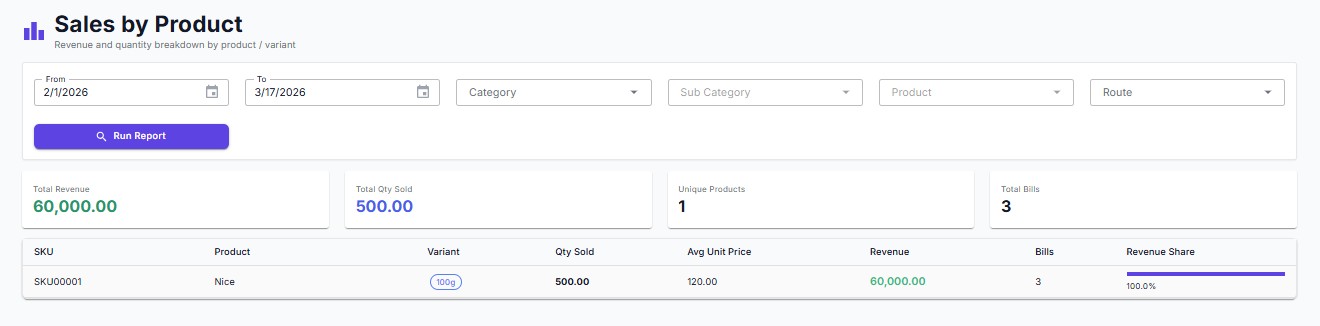
Filters
From / To date, Category, Sub Category, Product, Route, then “Run Report”.
KPI Cards
Total Revenue · Total Qty Sold · Unique Products · Total Bills.
Product Performance Table
Columns: SKU · Product · Variant badge · Qty Sold · Avg Unit Price · Revenue · Bills · Revenue Share (inline bar). Surfaces bestsellers and slow-movers for buying and route planning decisions.
④Expense Report
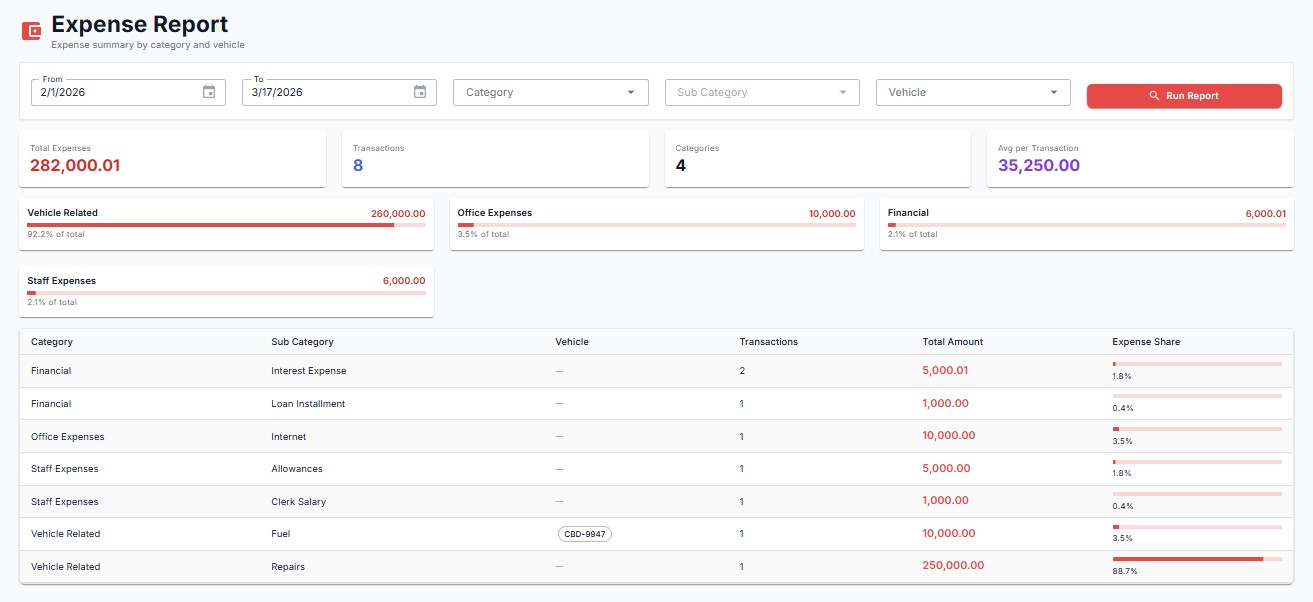
Filters
From / To date, Category, Sub Category, Vehicle, “Run Report”.
KPI Cards
Total Expenses · Transactions · Categories · Avg per Transaction.
Category Summary Bars
Horizontal bars by category (Vehicle Related, Office Expenses, Financial, Staff Expenses) with percentage share of total spend.
Detail Table
Columns: Category · Sub Category · Vehicle badge · Transactions · Total Amount · Expense Share (inline bar).
⑤Profit & Loss Report
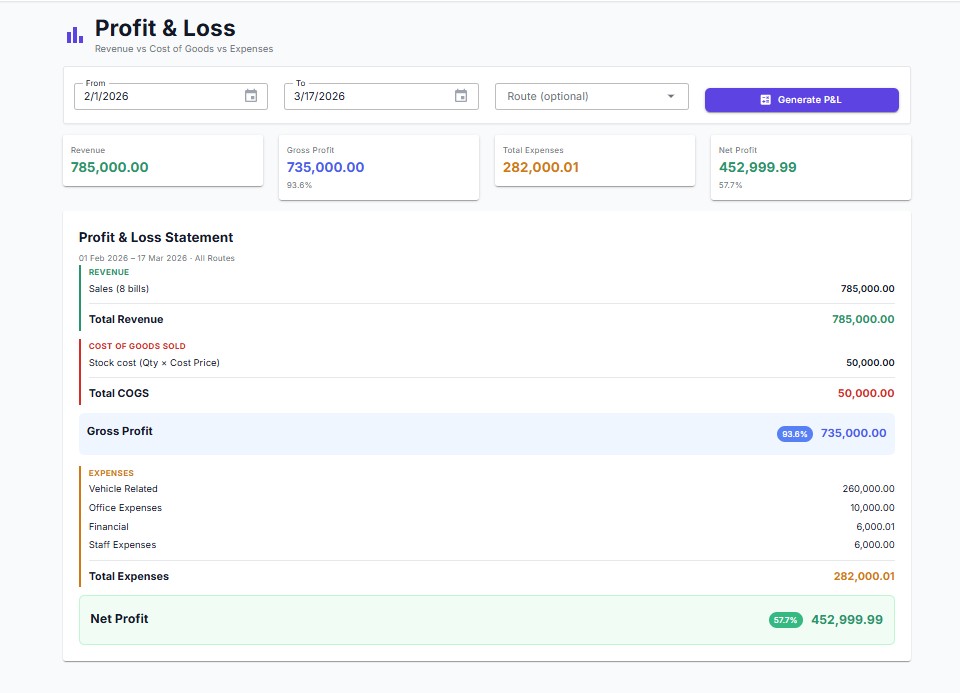
Filters
From / To date, Route (optional), “Generate P&L” button.
KPI Cards
Revenue · Gross Profit (% margin) · Total Expenses · Net Profit (% margin).
P&L Statement
REVENUE — Sales (bill count × total) = LKR 785,000.
COST OF GOODS SOLD — Stock cost (Qty × Cost Price) = LKR 50,000 → Gross Profit 93.8% = LKR 735,000.
EXPENSES — Vehicle Related + Office + Financial + Staff = LKR 282,000.
Net Profit 57.7% = LKR 452,999.99. Ideal for owner review and month-end reporting.
Admin
System configuration and master data — companies, routes, shops, users, and vehicle type setup.
①Companies

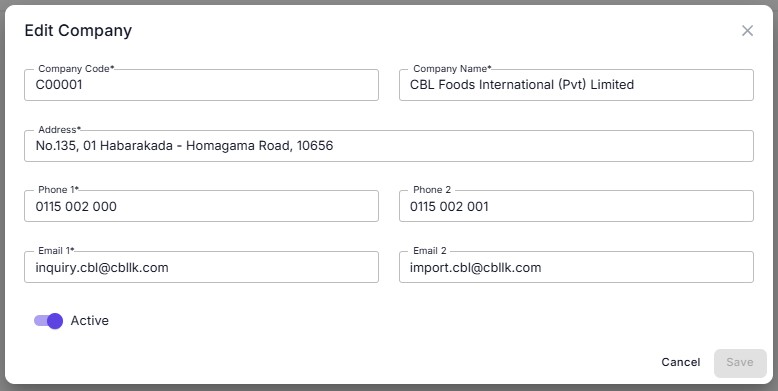
Company Fields
Code (e.g. C00001) · Full Name (e.g. CBL Foods International (Pvt) Limited) · Address · Phone 1 / Phone 2 · Email 1 / Email 2 · Active toggle. Companies are referenced on bills, expenses, and reports to separate multi-supplier operations.
②Routes

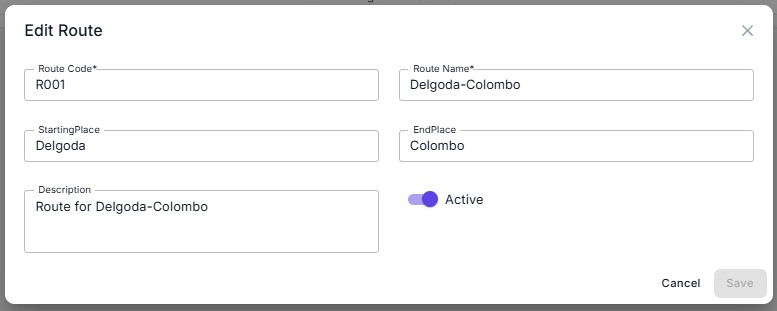
Route Fields
Route Code (R001–R004) · Route Name · Starting Place · End Place · Description · Active toggle. Routes are filter options across Billing, Dashboard, Vehicle Management, and every report. Shops are assigned to routes to segment daily operations.
③Shops
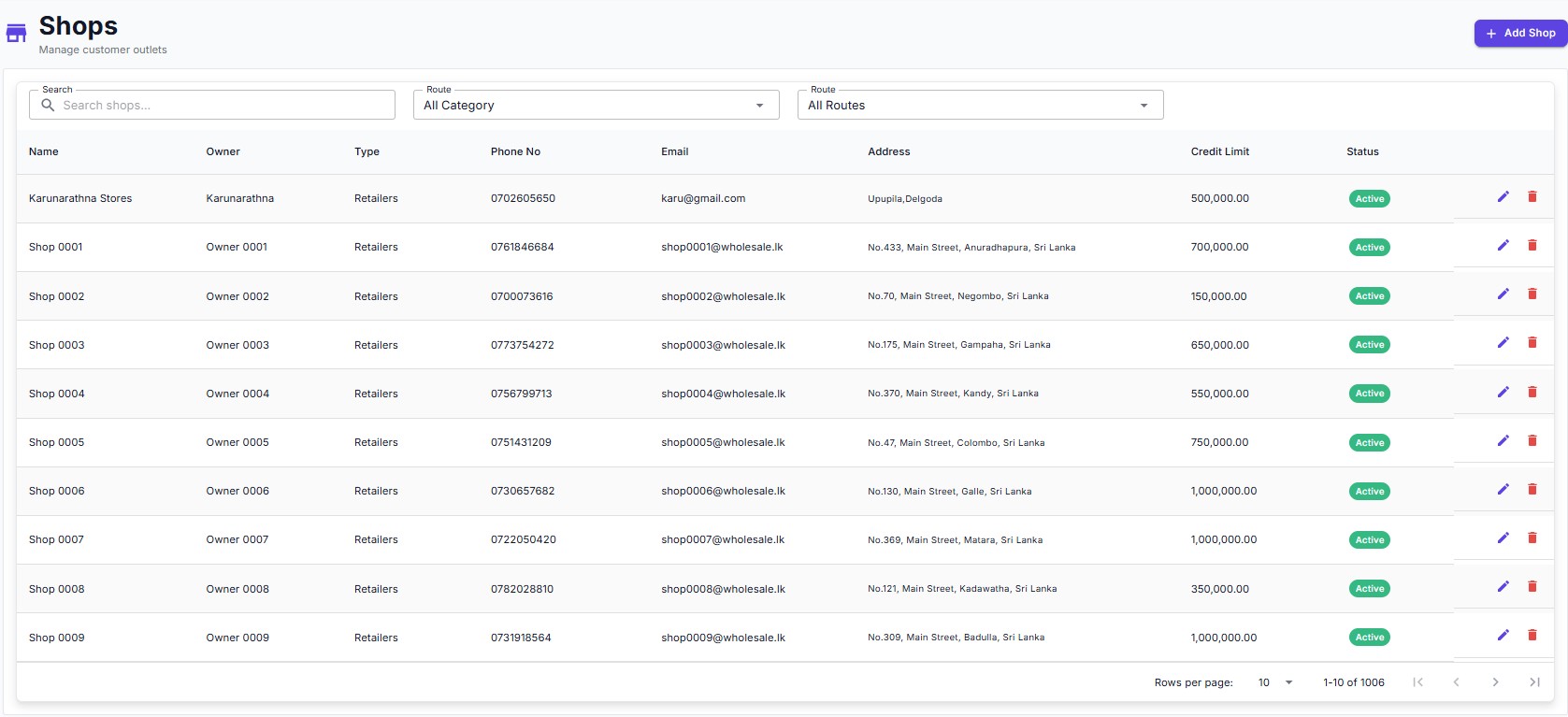
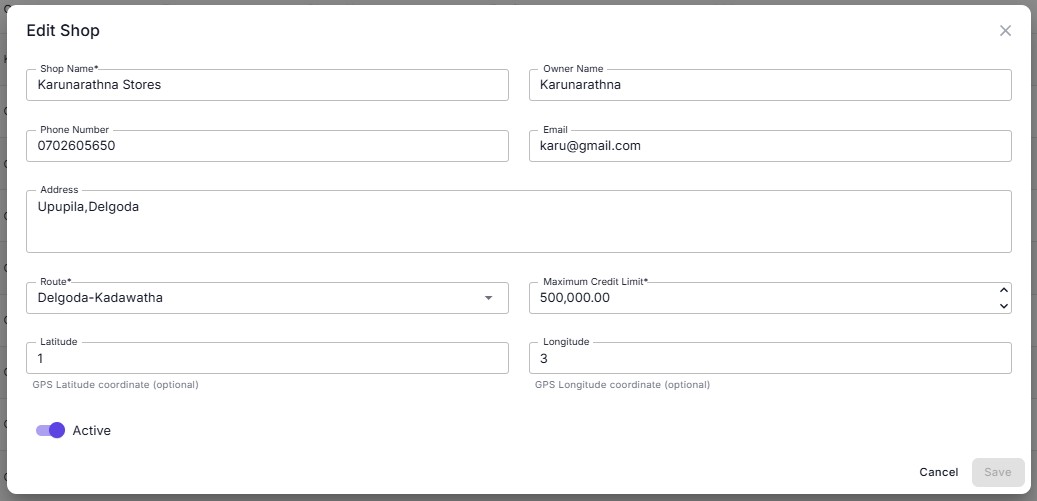
Shop Fields & List
List (1,000+ records). Filters: Search, All Category, All Routes. Table columns: Name · Owner · Type · Phone No · Email · Address · Credit Limit · Status.
Add/Edit fields: Shop Name, Owner Name, Phone Number, Email, Address, Route, Maximum Credit Limit, Latitude, Longitude, Active. Credit Limit controls how much credit may be outstanding for a shop at any time.
④Users
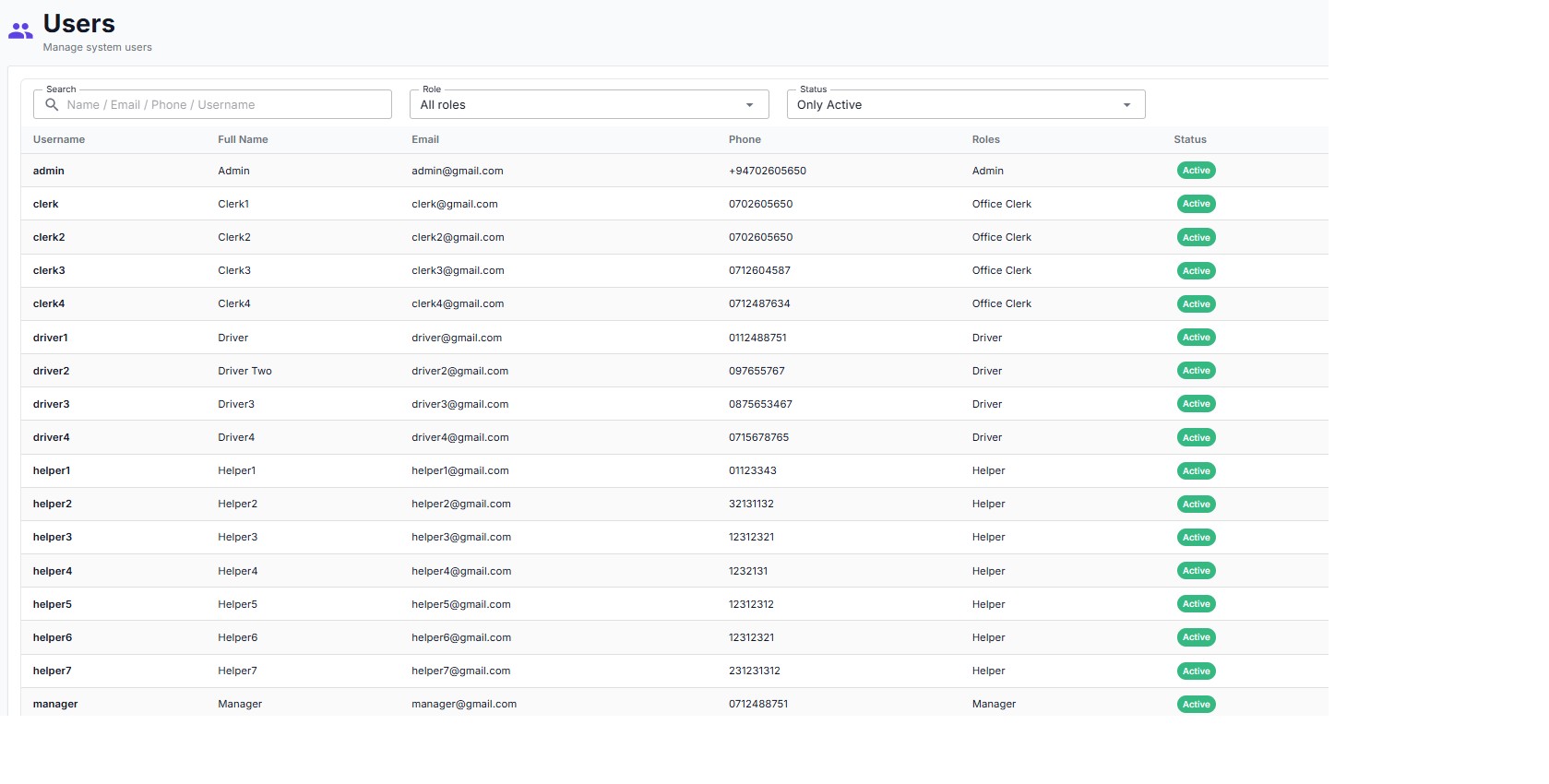
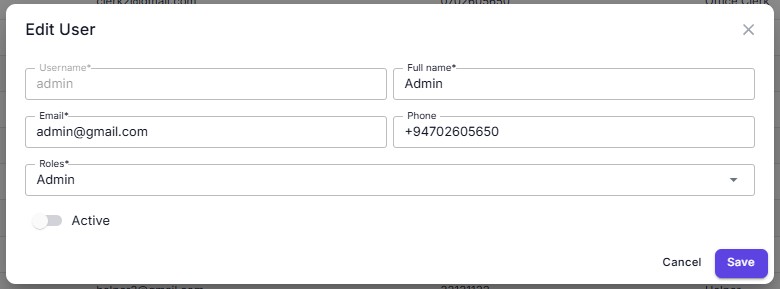
User Fields
Username · Full Name · Email · Phone · Roles (multi-select dropdown) · Active toggle. Available roles: Admin · Manager · Office Clerk · Driver · Helper · Sales Rep.
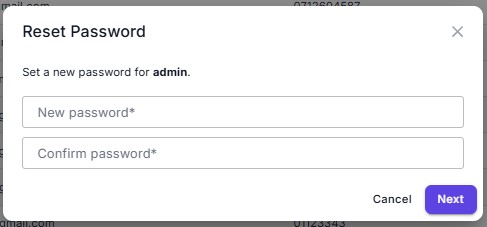
Reset Password
Admin-initiated reset: New Password, Confirm Password, Next button. Admins manage all credentials from this screen — no self-service reset flow required.
⑤Vehicle Type Configuration

Vehicle Type List
Columns: Name · Fuel Type · Insurance Age (months) · Emission Test Age (months) · Revenue Licence Age (months). These thresholds drive the maintenance alert system in Vehicle Management.
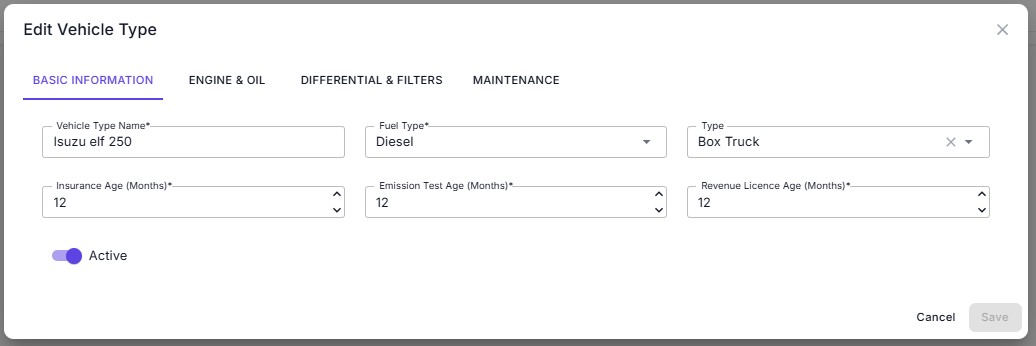
Basic Information
Vehicle Type Name, Fuel Type, Type classification, Insurance / Emission / Revenue Licence age in months, Active toggle.
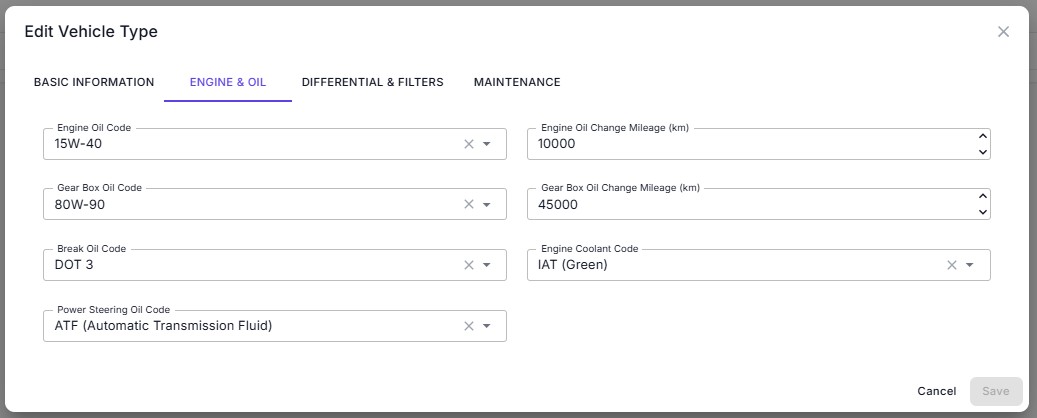
Engine & Oil
Service interval settings for engine oil changes and related checks.
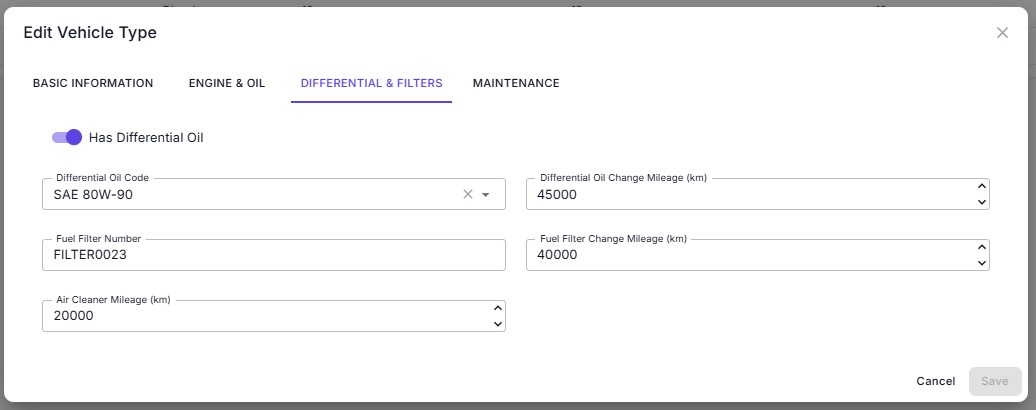
Differential & Filters
Service interval thresholds for differential fluid and filter replacements.
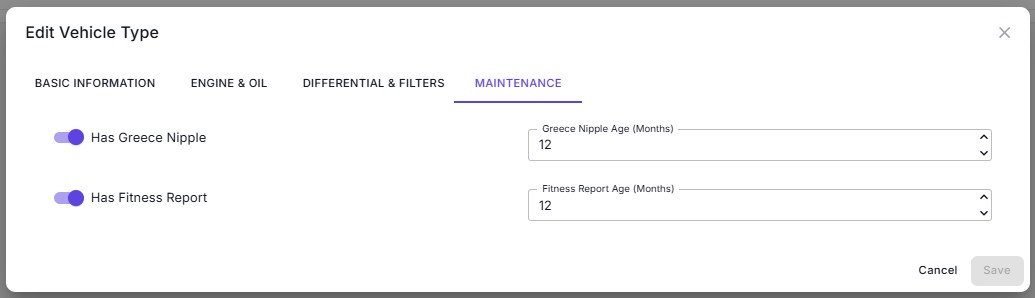
Maintenance
Has Grease Nipple (+ age), Has Fitness Report (+ age). Each tab sets thresholds that trigger alerts in Vehicle Management.
Need a live walkthrough?
Our team can walk you through any module via a screen-sharing session at no cost.
Request a demo